DigitalOcean
DigitalOcean is a cloud computing platform offering IaaS and PaaS solutions for developers. Their most popular IaaS product, Droplets, provides scalable virtual machines that are ideal for web hosting and Virtual Private Server (VPS) deployments.
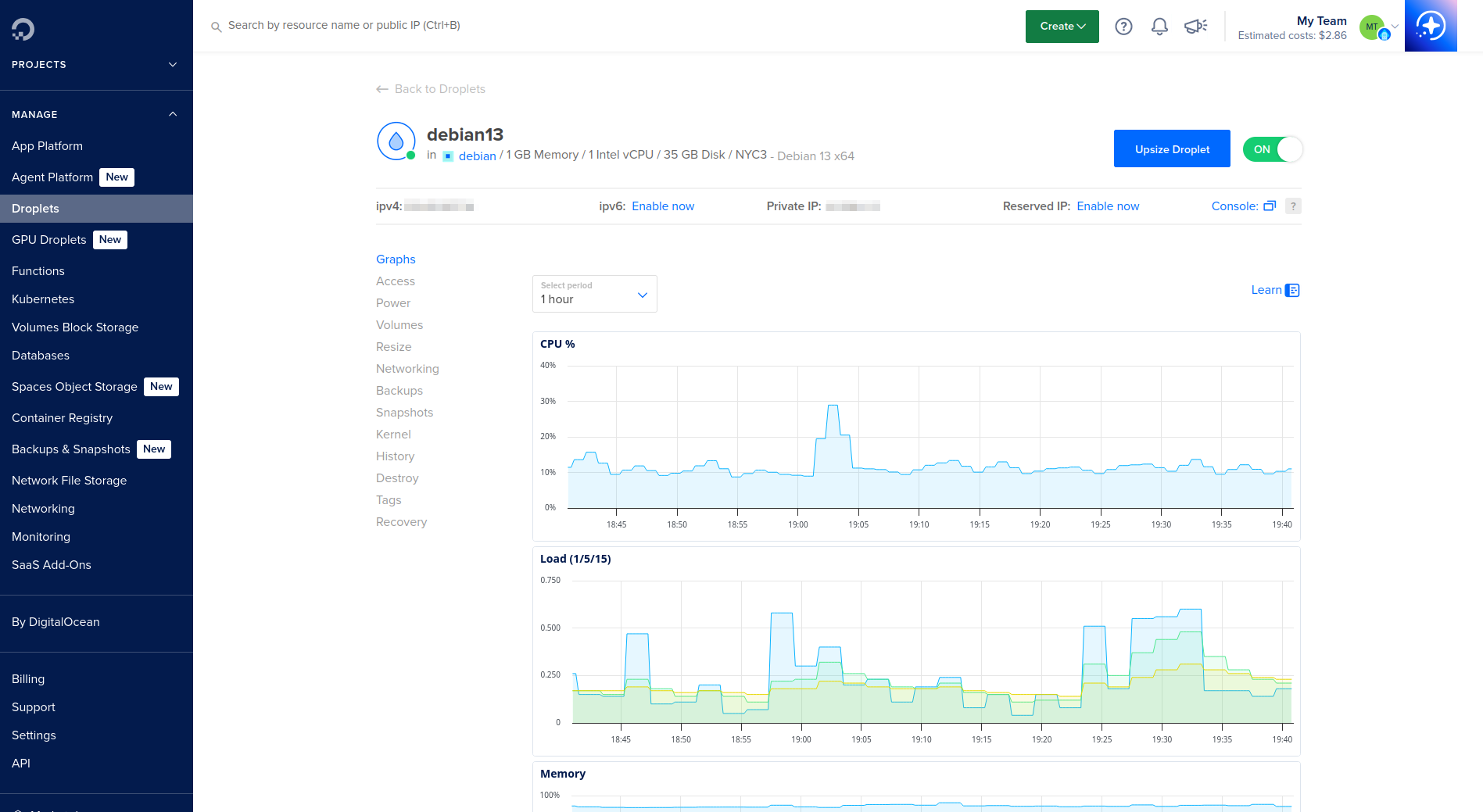
DigitalOcean Droplet dashboard
Choosing a Droplet
I opted for the Basic Premium Intel Droplet that includes 1 vCPU, 1 GB memory, 35 GB SSD, and 1 TB storage. While being economical, this VPS has enough resources to host a Pangolin stack, but not more than that due to memory constraints.
Configuration
VPS setup
I chose Debian as the host OS and then proceeded to configure the VPS:
Firewall
I configured the VPS to accept traffic from all IPv4/v6 addresses over port 80 and 443 (HTTP/S), as well as port 21820 and 51820 (Pangolin Newt tunnel). As for SSH, I have it blocked on the firewall, but it is possible to connect from only my workstation thanks to Tailscale ACLs. Without Tailscale, I would only allow inbound SSH coming from my home network's public IP. All outbound TCP, UDP, and ICMP traffic are allowed by default.
SSH hardening
sudo useradd mluchet
sudo passwd mluchet            # Set mluchet's password

su mluchet                     # Log in to non-root user account
ssh-keygen                     # Generate a 2048-bit RSA public/private key pair
                               #    in the ~/.ssh directory
Then, I manually copied my workstation's public key to the VPS for passwordless SSH authentication:
# (1) On the local machine:

cat .ssh/id_ed25519.pub                     # Show the local machine's public key

ssh-ed25519 <secret> example@email.com      # Copy this public key to the clipboard


# (2) On the VPS, logged in as the non-root user:

mkdir -p ~/.ssh         # Create the ~/.ssh directory
                        #   if it doesn't already exist

echo "<clipboard-contents>" >> ~/.ssh/authorized_keys

# (3) Append the local machine's public key
#       to the droplet's list of authorized SSH keys
chmod -R go= ~/.ssh            # Prevent other users on the system from reading
                               #   private keys

chown -R $USER:$USER ~/.ssh    # Set the user as the owner of the directory and
                               #   its contents
PasswordAuthentication no      # Disable password authentication

UsePAM no                      # Prevent PAM from bypassing the above control

PermitRootLogin no             # Disable root login
Docker
The next step was to install the Docker Engine using the official instructions for a Debian install. After installation, I added my user to the docker group:
Pangolin setup
Pangolin combines the reverse proxy capabilities of Traefik and WireGuard tunneling for secure access to private services without opening firewall ports. To get started, I ran the official installation script on the VPS and followed the documentation, configuring Pangolin to use my homelab's FQDN, and enabling CrowdSec for banning malicious IPs.
Sites
After deploying the Pangolin compose stack, I created a Newt Site for my Pi server. Newt is Pangolin's custom user-space WireGuard agent that is deployed on clients that receive proxied traffic from Pangolin. I created a Newt Site on my Pi server by deploying the Docker Compose stack that was generated for my site:
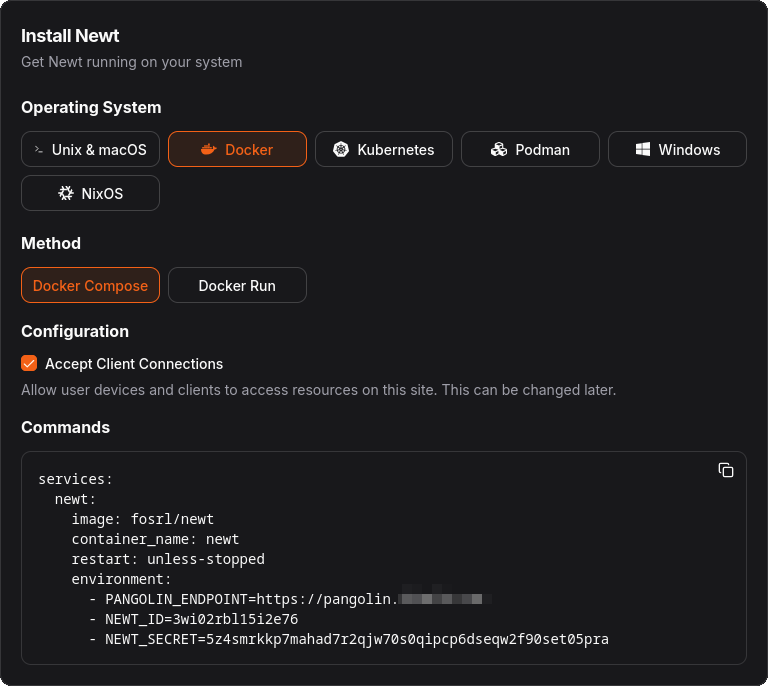
Creating a Newt Site

Site is online: VPS and Pi are communicating over the Newt tunnel
Resources
With the Site deployed, I then created my first public Resource. In Pangolin, you can create HTTPS or raw TCP/UDP Resources. I set up Authentik as my first Public HTTPS Resource:
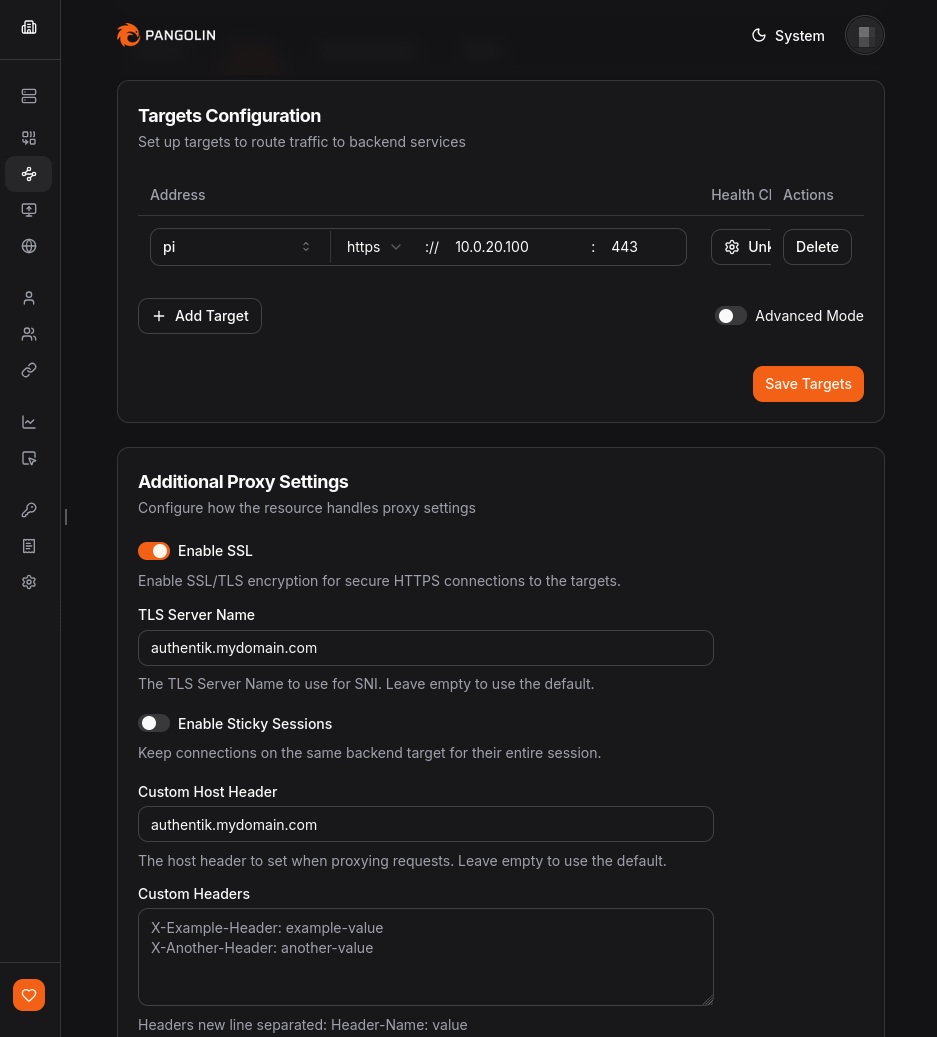
Configuring Public Resource for Authentik
With this configuration, the HTTPS request for authentik.mydomain.com is forwarded over the Newt tunnel to my Pi server that has Nginx Proxy Manager (NPM) listening on port 443. Since the Custom Host Header was set to authentik.mydomain.com, NPM reads this and routes the traffic to the Authentik host's internal port.
Authentication and ACL Rules
Pangolin also supports platform SSO as an authentication mechanism, as well as ACL rule configuration. For my Authentik resource, I made sure to enable platform SSO for Members, and configured the rules such that US-based requests are passed to the authentication portal and all other countries are blocked.
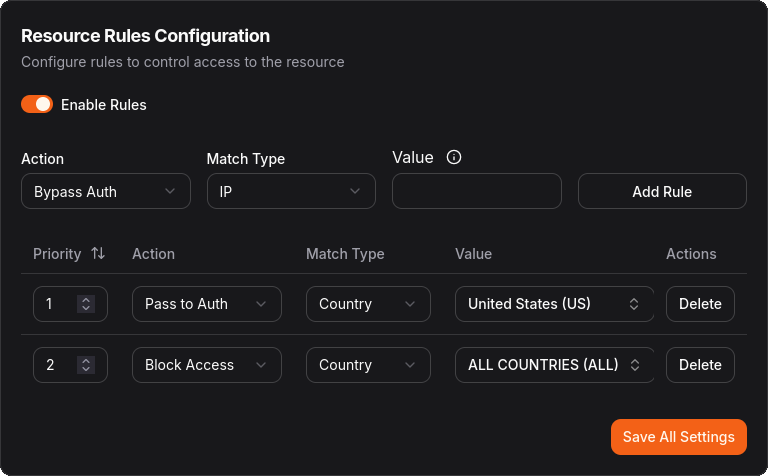
Pangolin Resource rules
For anyone connecting from the US (or a US VPN), this is what they will see:
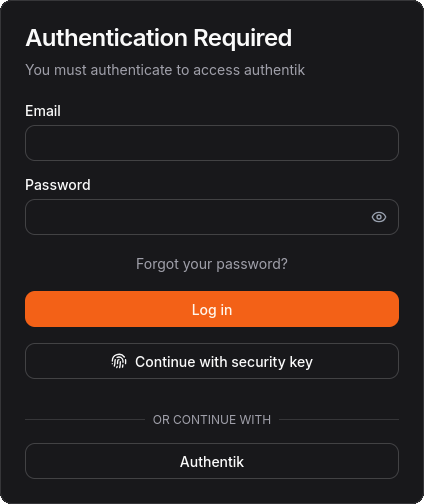
Pangolin Authentication portal